Reading and adjusting the histogram
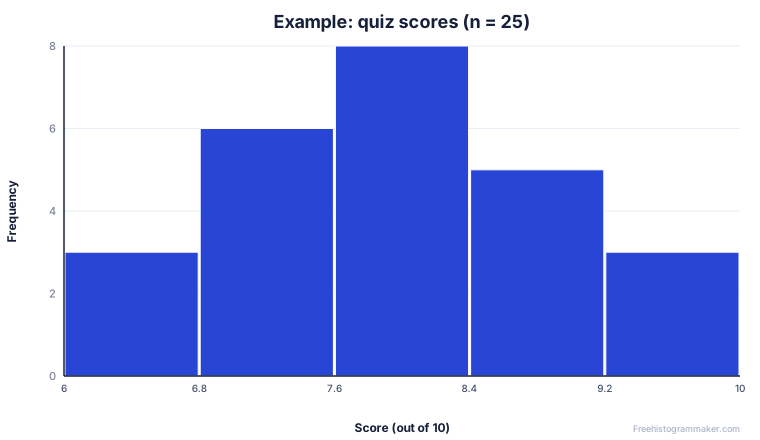
Once the bars appear, press TRACE to walk across them; the calculator shows the range of each bar and how many data points fall inside it. To change how the data is grouped, return to WINDOW and edit Xscl (bin width) and the Xmin/Xmax range. A smaller Xscl creates more, narrower bars; a larger Xscl creates fewer, wider ones.
Using a frequency table on the TI-84
Statistics problems often give you a frequency table rather than raw data, and the TI-84 handles this without you typing every value out. Put each data value (or the midpoint of each class) in L1, and put the matching frequency in L2. Then, in the Stat Plot setup, set Xlist: L1 and change Freq from 1 to L2. When you press ZoomStat, the calculator treats each value as if it appeared as many times as its frequency, producing exactly the histogram the table describes.
Get the mean and median while you are there
The same lists power the calculator’s summary statistics. Press STAT, arrow over to CALC, choose 1:1-Var Stats, set the list (and frequency list if you used L2), and the TI-84 returns the mean, median, quartiles and standard deviation. Pairing those numbers with your histogram is exactly what most statistics assignments ask for.
TI-84 vs computer software
A calculator histogram is perfect for class and exams, but the small screen and fixed styling make it hard to drop into a typed report. Software such as Excel, R or an online maker gives you labeled axes, color and high-resolution export. The steps are also nearly identical on the TI-83 family and broadly similar on the TI-Nspire, where you create a Data & Statistics page and select the histogram plot type.