How to make a histogram from a frequency table
You do not need the original raw numbers. In the maker, switch to Frequency table mode and type one class per line:
- Enter lines like
0-10, 3then10-20, 8, one class per row. - Press Make histogram to draw the bars and build the frequency table.
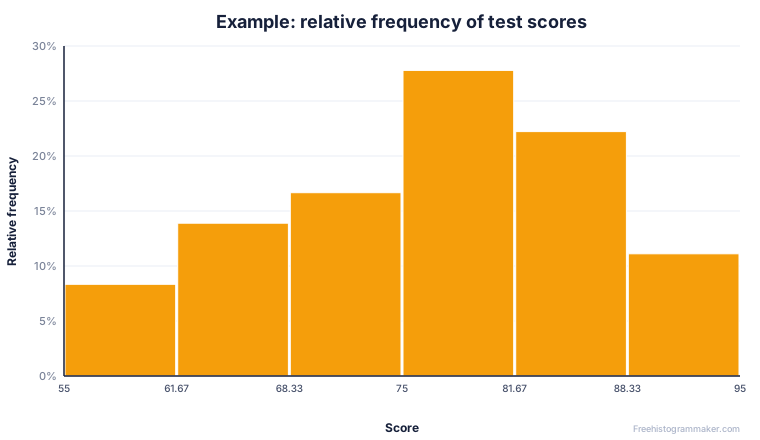
- Tick Relative frequency (%) to flip the Y-axis to percentages.
- Download the chart as PNG or SVG, or export the full table as CSV.
Working the other way — from raw data to a frequency table — is just as easy: paste your numbers in Raw data mode and the maker generates the frequency, relative and cumulative columns for you.
Cumulative frequency and the ogive
Cumulative frequency answers a different question: “how many values fall at or below this point?” You build it by adding each class to the running total, so the final class always reaches the full count (and 100% in relative terms). Plotting cumulative relative frequency against the upper class boundaries produces an ogive, an S-shaped curve that makes medians and percentiles easy to read off by eye. The maker calculates the cumulative column automatically and includes it in the CSV export, so you have the numbers ready whether you need a histogram or an ogive.
When to use relative frequency
Reach for a relative frequency histogram whenever the totals differ. If one class has 40 students and another has 120, raw counts make the larger class look dominant even when the shape of the two distributions is identical. Converting to percentages puts them on the same footing. Relative frequency is also the natural bridge to probability: the proportion in each bin estimates how likely a new value is to land there.
A note on unequal class widths
If your classes are not all the same width, comparing bar heights directly is misleading, because a wider bar covers more of the number line. The fix is frequency density — divide each frequency by its class width and plot that on the Y-axis. With equal-width classes this is unnecessary, which is why most everyday histograms simply use counts.