Excel histogram guide

How to Make a Histogram in Excel

Two reliable ways to make a histogram in Excel: the built-in histogram chart in Excel 2016, 2019, 2021 and Microsoft 365, and the classic Analysis ToolPak method that also works in older versions. Below you will find both, plus the FREQUENCY function, bin tips and how to move the chart into Word.

Method 1 — the built-in histogram chart (Excel 2016 and later)

If you run a modern version of Excel, this is the quickest route. Excel reads your raw data and builds the bars and bins for you.
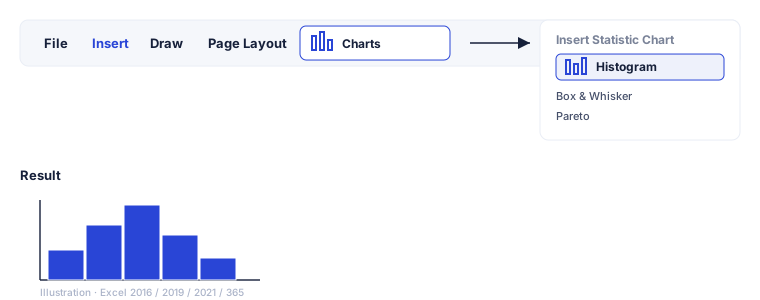
Illustration of the Excel ribbon: Insert tab, Charts group, Insert Statistic Chart drop-down with Histogram highlighted, and the resulting chart
The histogram chart lives under Insert → Charts → Insert Statistic Chart in Excel 2016 and later.
  1. Enter your data in one column

    Put each value in its own cell down a single column, with an optional header such as Score in the first row.

  2. Select the data

    Click and drag to highlight the whole column of numbers, including the header if you used one.

  3. Open Insert → Statistic Chart

    On the Insert tab, in the Charts group, click Insert Statistic Chart and choose Histogram.

  4. Adjust the bins

    Double-click the horizontal axis to open Format Axis. Under Axis Options set Bin width or Number of bins, and use overflow/underflow bins to group extremes.

  5. Format and export

    Add a chart title and axis titles from the Chart Design tab, recolor the bars, then right-click → Save as Picture to export.

Good to know: the built-in chart updates live. Change a number in your column and the histogram redraws automatically — handy when you are still collecting data.
Method 2 — the Analysis ToolPak (works in older Excel too)

The Analysis ToolPak is a free add-in shipped with Excel. It produces a frequency table and an optional chart, and it is the standard answer when Excel shows no Histogram chart type.

  1. Enable the Analysis ToolPak

    Go to File → Options → Add-ins. At the bottom set Manage: Excel Add-ins, click Go, tick Analysis ToolPak and press OK.

  2. Create a bin range

    In a spare column, list the upper boundary of each bin, for example 10, 20, 30, 40. These define where one bar ends and the next begins.

  3. Open Data Analysis

    On the Data tab click Data Analysis, choose Histogram and press OK.

  4. Set the ranges

    Set Input Range to your data and Bin Range to your boundaries, tick Chart Output, then press OK.

  5. Remove the gaps

    Right-click any bar → Format Data Series and set Gap Width to 0% so the bars touch like a true histogram.

Build a frequency histogram with FREQUENCY()

For full control, count the values yourself with the FREQUENCY array function and chart the result. This is the most flexible way to make a frequency histogram in Excel.

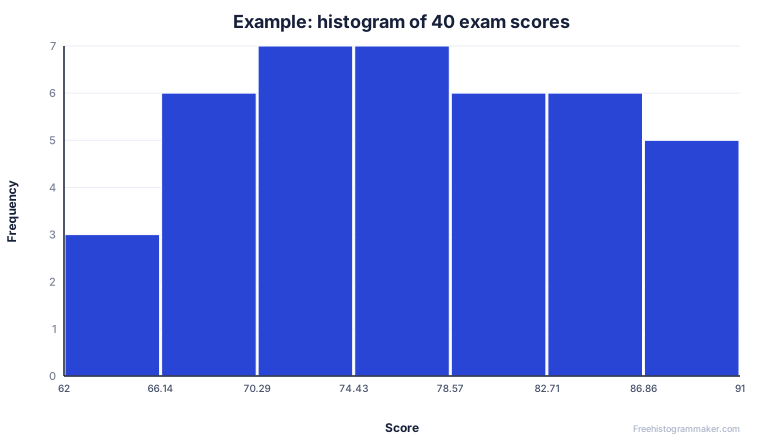
Example histogram of 40 exam scores produced from a single column of data
Example output: a histogram of 40 exam scores.
  1. List the upper bound of each bin in a column, e.g. 10, 20, 30, 40, 50.
  2. Next to it, enter =FREQUENCY(A2:A101, C2:C6), where A is your data and C is your bins.
  3. In Microsoft 365 the result spills down on its own. In Excel 2019 or earlier, select the whole output column first and confirm with Ctrl+Shift+Enter.
  4. Select the counts and insert a Clustered Column chart, then set the bar Gap Width to 0% so the bars touch.

To turn this into a relative frequency histogram, divide each count by the total with =count/SUM(counts) and format the result as a percentage before charting.

Setting bins and formatting the chart

The bins decide how your data is grouped, so they have a big effect on the final shape. Double-click the horizontal axis and open Format Axis to set a fixed bin width or a fixed number of bins. A frequent gotcha is starting bins at the minimum value — if you want round intervals, set the first bin to begin at a tidy number such as 0 instead.

From the Chart Design and Format tabs you can add a chart title and axis titles, change the bar color, and add data labels. Keep it simple: one clear title, labeled axes and a single bar color usually reads best in a report.

How to put an Excel histogram into Word

Select the finished chart and copy it. In Word, paste it as an editable chart (it keeps a link to your Excel data) or use Paste Special → Picture for a fixed image that will not change. You can also right-click the chart in Excel, choose Save as Picture, and insert that PNG into Word, a slide deck or a PDF. Modern Word and PowerPoint can also build a histogram directly via Insert → Chart → Histogram.

Skip the menus — make it online

If you just need the chart and the numbers, you do not have to wrestle with bins and add-ins at all. Paste a single column of values into the maker and you get the histogram, the summary statistics and a downloadable frequency table in one go.

Open the free histogram maker

FAQ

Excel histogram questions

Why is there no Histogram option in my Excel?

The built-in histogram chart only exists in Excel 2016 and later, including Microsoft 365. In Excel 2013 and earlier, use the free Analysis ToolPak add-in instead, or the FREQUENCY function plus a column chart.

How do I change the bin width in an Excel histogram?

Double-click the horizontal axis, open Format Axis, and under Axis Options set a fixed Bin width or a fixed Number of bins. Tick the overflow and underflow bins to bundle very large or very small values into a single bar.

How do I make a frequency histogram in Excel?

List your bin boundaries in a column, then use =FREQUENCY(data_array, bins_array) to count how many values fall in each bin. In Microsoft 365 it spills automatically; in older Excel select the output range and press Ctrl+Shift+Enter. Chart the result as a column chart with 0% gap width.

How do I put an Excel histogram into Word?

Select the finished chart, copy it, then in Word use Paste for an editable chart or Paste Special → Picture for a fixed image. You can also right-click the chart in Excel and choose Save as Picture, then insert that file.

Is there a faster way than Excel?

Yes. If you only need the chart, paste your column into our free histogram maker — it auto-bins, shows the statistics and exports PNG, SVG or a CSV frequency table without any menus.

Keep going

Related guides