Method 2 — the quick Column stats distribution
For a fast look without making a chart, select your column of numbers and open Data → Column stats. The panel shows a small distribution view alongside the count, average and other summaries — perfect for a quick sanity check before you build the full chart.
Controlling bucket size (bin width)
The single most important setting is Bucket size, found under Customize → Histogram. It sets how wide each bin is. If your chart looks too blocky, lower the bucket size; if it looks noisy and spiky, raise it. The Outlier percentile option groups extreme values so a few unusual points do not stretch the whole axis.
Common Google Sheets histogram mistakes
A handful of issues account for almost every “my histogram looks wrong” question:
- Numbers stored as text. If your values were imported or typed with stray spaces, Sheets may treat them as text and refuse to bin them. Select the column and use Format → Number to fix it.
- Header rows in the selection. Including a text header can throw off the chart. Either leave the header out of the selection or let the Chart editor use it as the series name only.
- Auto bucket size. Leaving bucket size on automatic is fine for a quick look but gives you no control. Set a fixed value once you know your data’s range.
- Multiple columns selected. A histogram expects one numeric column. Selecting several can produce a grouped chart you did not intend.
Histogram or column chart in Sheets?
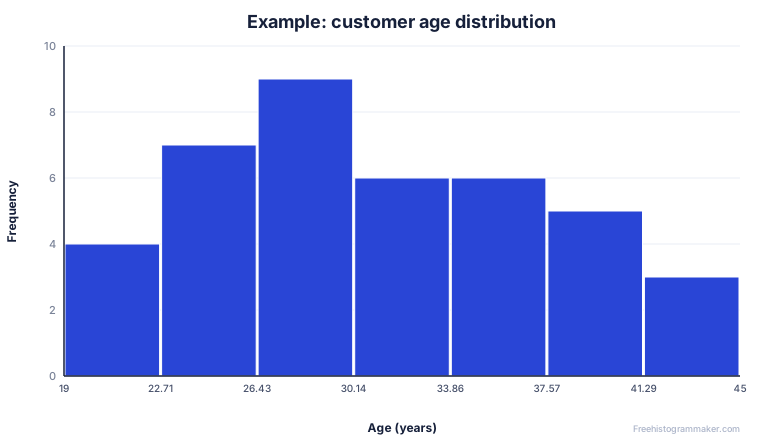
If Sheets keeps drawing a column chart, remember the difference: a histogram bins continuous numbers and the bars touch, while a column chart compares labeled categories with gaps between the bars. When your x-axis is a set of numbers grouped into ranges, force the chart type to Histogram in the Setup tab rather than accepting the suggested column chart.
For very skewed data — where most values bunch up and a few are huge — a linear axis can hide the detail. Sheets does not offer a log-scaled histogram axis directly, so a common workaround is to add a helper column with =LN(value) and chart that instead, then label the axis as a log scale.